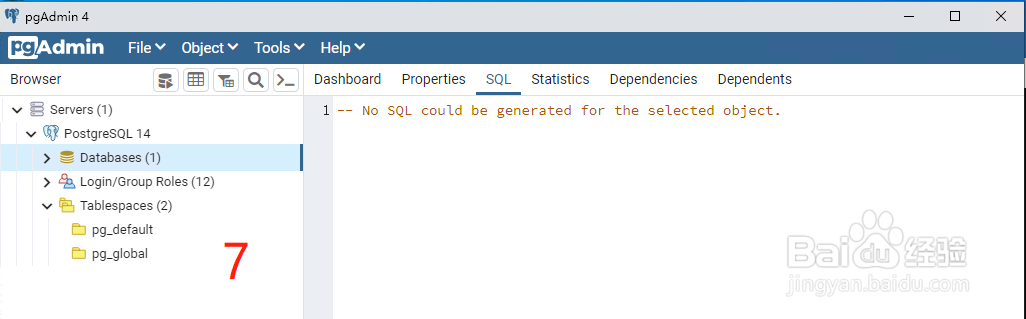
PostgreSQL是一个功能强大的开源对象关系数据库系统,经过35年的积极开发,在可靠性、功能健壮性和性能方面赢得了良好的声誉,我们可以通过以下步骤在 Windows 中安装它:
一、安装 PostgreSQL
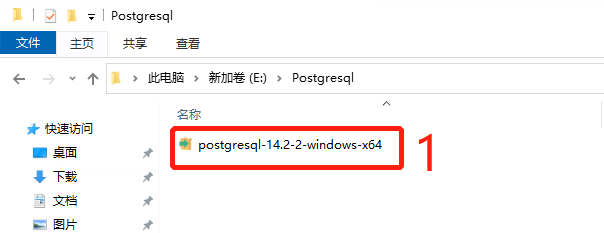
1、双击安装包,开始安装
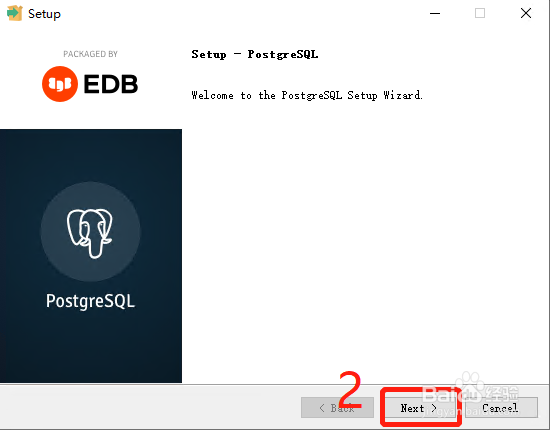
2、单击“ Next (下一步)”
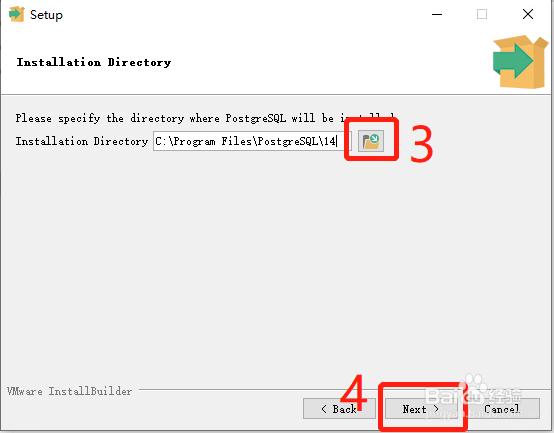
3、选择安装目录(Installation Directory)
4、选择要安装的组件(Select Components),然后点击”Next (下一步)“
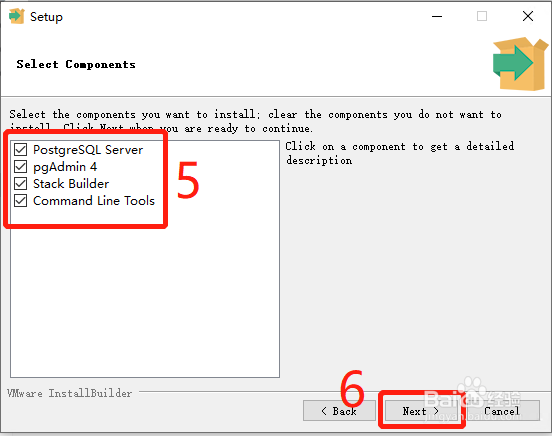
5、选择数据目录(Data Directory),然后点击”Next (下一步)“
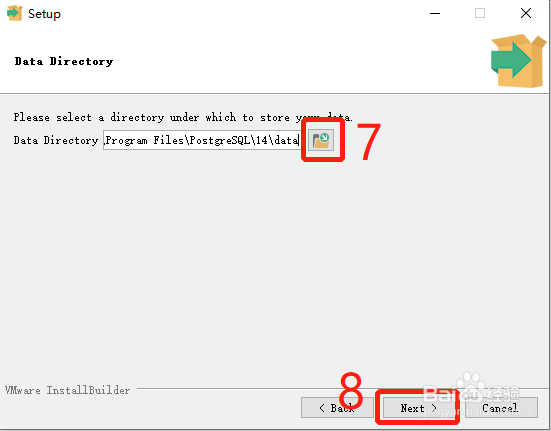
6、为超级用户 postgres 设置密码,然后点击”Next(下一步)“

7、设置端口号(Port)(默认即可)
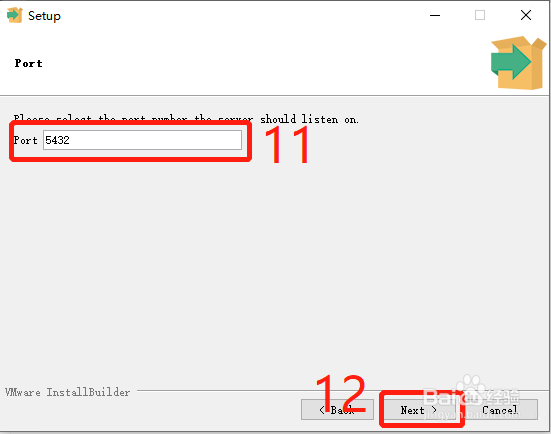
8、设置语言环境(Locale)(默认即可),然后点击“Next (下一步)”
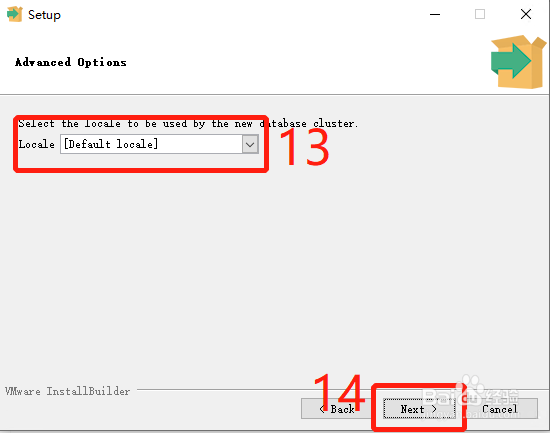
9、安装预览(Pre Installation Summary),然后点击“Next(下一步)”
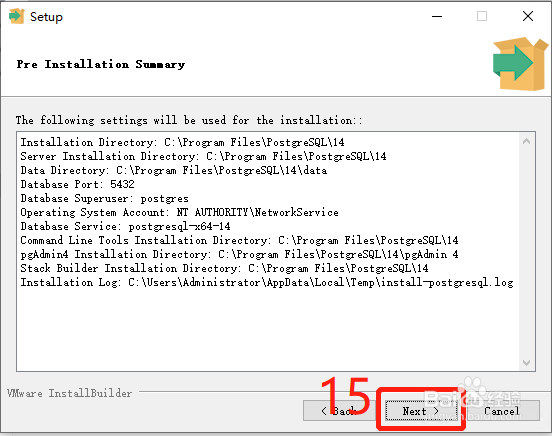
10、点击“Next(下一步)”
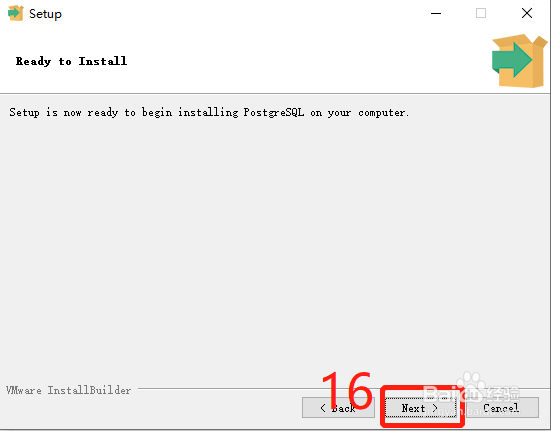
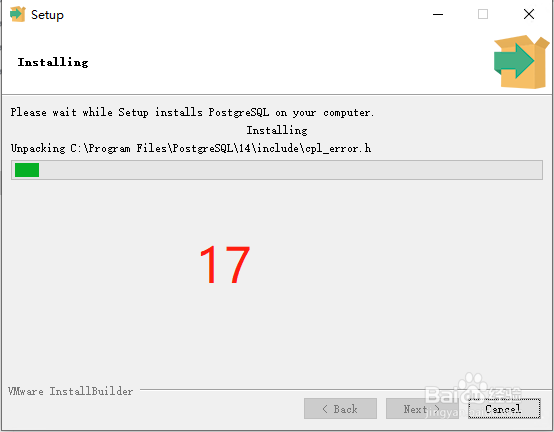
11、安装进度(Installing)
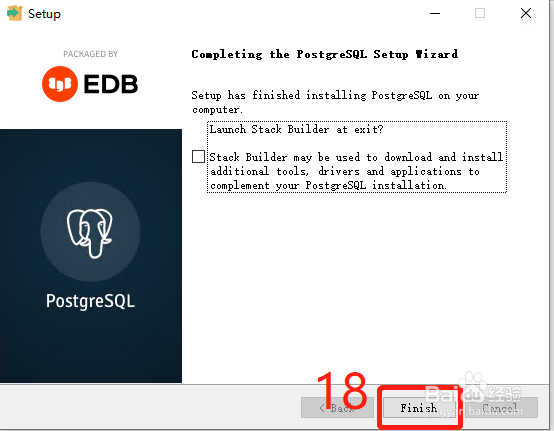
12、安装完成,点击“Finish(完成)”
二、运行 PostgreSQL
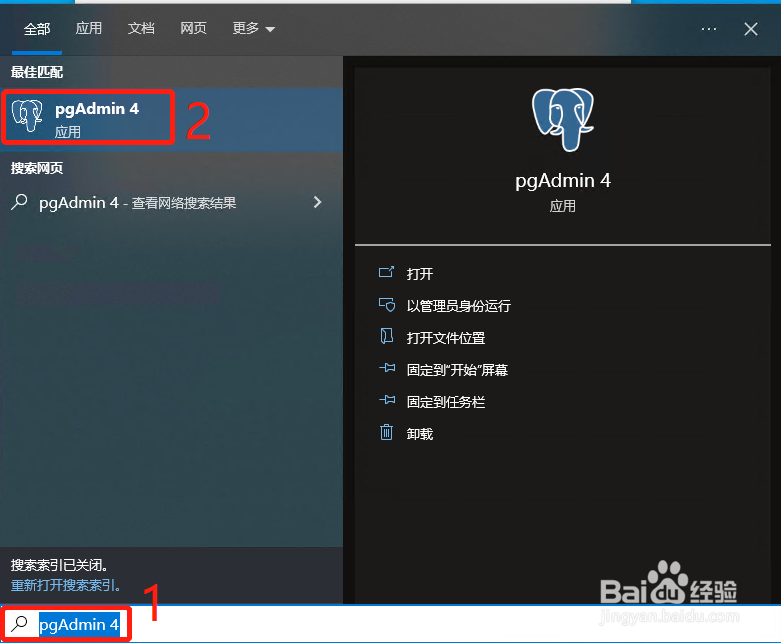
1、在搜索栏中输入 pgadmin,打开 pgAdmin 4
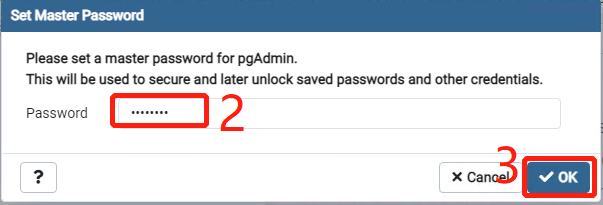
2、设置 master 密码,然后点击“OK”
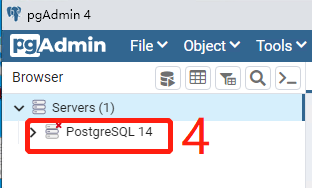
3、在左边窗口中的 Server 找到 PostgreSQL 并双击
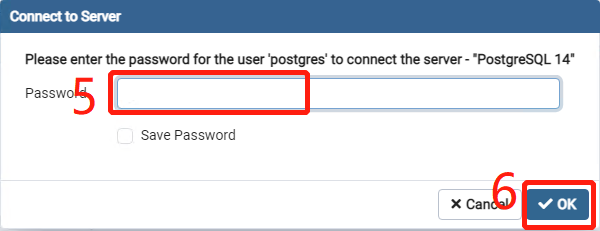
4、输入安装时为超级用户 postgres 设置的密码,然后点击“OK”
5、连接成功